
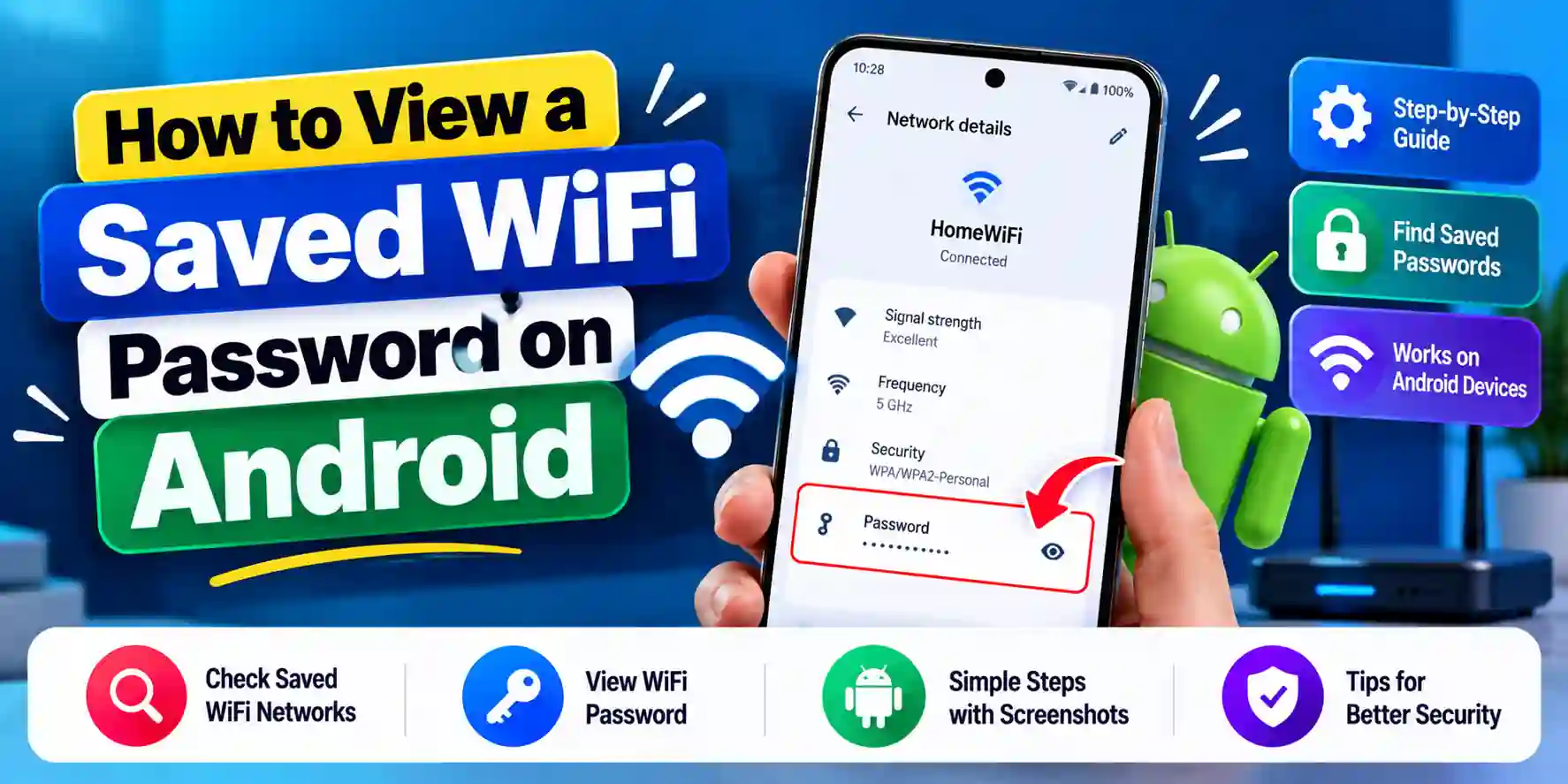
How to View a Saved WiFi Password on Android
On Android 10 and later you can see any saved WiFi password without rooting your phone. Open Settings → Network & internet → Internet, tap the network, tap Share, authenticate with your fingerprint or PIN, and the password appears in plain text beneath a QR code.
On Android 9 and earlier it is not possible without root access. That single dividing line explains almost every problem people run into on this subject, and it is the reason so much advice about “WiFi password apps” is years out of date.
No app or root needed since Android 10
Before 2019, reading a saved WiFi password meant rooting the device so an app could read a protected system file. That is where the whole ecosystem of “WiFi password recovery” apps came from.
Android 10 made it unnecessary. The password is exposed directly in Settings, behind device authentication. Every Android version since — 11, 12, 13, 14, 15, 16, and Android 17, which shipped on 16 June 2026 — works the same way. Android 17 introduced no changes to network settings.
So: if you are on Android 10 or newer, ignore anything recommending an app. If you are on Android 9 or older, no non-root method will show you a saved password, and you will need the router method further down instead.
Pixel and stock Android (Android 10 and later)
- Open Settings.
- Tap Network & internet, then Internet.
- Tap the network you are connected to — or the gear icon beside it. For a network you are not currently on, tap Saved networks first, then choose it.
- Tap Share.
- Authenticate with fingerprint, PIN, or pattern.
- A QR code appears, with the password in plain text directly beneath it, labeled “Wi-Fi password”.
This is documented and tested through Android 15. Android 17 made no network-settings changes, so it is very likely unchanged, but treat the steps as “Android 10 and later” rather than as a verified Android 17 walkthrough.
Samsung Galaxy (One UI)
Most articles on this subject say Samsung only gives you a QR code. That is out of date. Current One UI does show the plaintext password, behind an eye icon — even Samsung-focused sites have older articles still saying otherwise.
Current One UI (roughly One UI 6.1 and later, including One UI 7 and 8):
- Settings → Connections → Wi-Fi.
- Tap the gear icon next to the connected network.
- In the Password field, tap the crossed-out eye icon.
- Authenticate.
- The password appears in plain text.
For a network you are not currently connected to: Settings → Connections → Wi-Fi → ⋮ → Advanced settings → Manage networks → select the network → eye icon.
One UI 7.0 added fingerprint authentication to this screen; earlier versions required a PIN or pattern.
Older One UI (Android 10 to 13): QR code only. Go to Settings → Connections → Wi-Fi → gear icon → QR code, then Save as image. Open that image in Google Photos and use Lens, or any QR scanner, to read the password out of it.
Xiaomi (MIUI and HyperOS)
Tap the connected network in WiFi settings and a QR code is displayed. Xiaomi’s own materials describe this as QR sharing rather than a plaintext reveal, so use the QR decoding method below.
We could not confirm a plaintext option on HyperOS 3 from Xiaomi documentation, so treat Xiaomi as QR-only unless your device shows otherwise.
OnePlus and other manufacturers
OnePlus publishes no documentation for this. OxygenOS tracks stock Android closely, so the Pixel steps above are the likely path — Wi-Fi settings, select the network, Share, then QR code plus password. Treat that as probable rather than confirmed.
The same applies to other skins. Try the stock path first; if you only get a QR code, decode it.
How to read the password out of a QR code
A WiFi QR code is not encrypted. It contains a short line of plain text in this format:
WIFI:T:WPA;S:NetworkName;P:ThePassword;;
S: is the network name and P: is the password. So decoding the QR gives you the password directly.
To do it: screenshot or save the QR code, then open it in Google Photos and tap Lens, or scan it with any QR reader app. The decoded text shows the network name and password in the clear.
One technical wrinkle worth knowing if a scanner fails. The specification only defines WPA as a valid value for T:, but Android — along with the KDE and GNOME desktops — emits T:SAE for WPA3 networks, which is not standards-compliant. Most scanners ignore the field and read S: and P: anyway, so it usually works. A few strict scanners choke on it. If one refuses your code, try a different scanner rather than assuming the code is broken.
The router method (works on any Android version)
If you are on Android 9 or older, or the Share option is missing, read the password from the router instead. You will need the router’s admin login, which is not the same thing as the WiFi password.
- Connect to the router, by WiFi or Ethernet.
- In a browser, go to the router’s address. Commonly 192.168.0.1 or 192.168.1.1; TP-Link also uses tplinkwifi.net. The correct address is usually printed on a label on the router.
- Log in with the router admin credentials.
- Find the wireless settings. The path varies: TP-Link documents Wireless → Wireless Settings, or Basic → Wireless, and on older models the network name sits under Basic Settings with the password under Wireless Security.
The catch, in TP-Link’s own words: if you have forgotten the router login password, you cannot reach the admin interface without factory resetting the router — which wipes its configuration. Worth knowing before you start.
Why you sometimes can’t see your WiFi password
This is a common question and it has four real answers.
You are on Android 9 or earlier. The feature does not exist. Use the router method.
You are on older Samsung One UI. Versions on Android 10 to 13 offer a QR code but no plaintext reveal. Save the QR and decode it.
It is an enterprise network. On WPA2 or WPA3-Enterprise using 802.1X — typical of offices, universities, and large venues — there is no shared password to display. Authentication is per-user, with a username and certificate rather than a single key. The WiFi QR standard does not cover 802.1X at all, so there is nothing to share. These networks are set up through a management profile or Passpoint, not by passing a password around.
Your device is managed by an employer or school. Administrators can disable WiFi QR sharing entirely through mobile device management. If the Share button is missing on a work phone and the network is not enterprise, this is the likely reason, and it is deliberate.
A note on WPA3 and modern security
WPA3-Personal networks can be shared from Android, subject to the T:SAE quirk above. Android has supported WPA3 and Wi-Fi Enhanced Open since Android 10, with additional WPA3 protections added in Android 12. Note that Android’s WPA3 support applies to joining networks rather than to running a hotspot.
Sharing a password without revealing it
Sometimes the goal is not to read the password but to get a guest online. If so, you do not need the password at all — just show them the QR code from the Share screen and let their camera do the rest. On Android 12 and later you can also push WiFi credentials to a nearby Android device using Quick Share.
Our guide on how to connect to WiFi without a password covers the options in full, including automatic connection methods for networks you are entitled to use.
Frequently asked questions
How do I see my WiFi password on Android? On Android 10 and later: Settings → Network & internet → Internet, tap the network, tap Share, authenticate, and the password appears beneath the QR code. On Samsung, go to Settings → Connections → Wi-Fi, tap the gear icon, and tap the eye icon in the Password field.
Do I need root to see a saved WiFi password? Not on Android 10 or later — the password is available in Settings behind device authentication. On Android 9 and earlier, root is required, so use the router admin page instead.
Why can’t I see my WiFi password in settings? Four likely reasons: you are on Android 9 or older; you are on Samsung One UI running Android 10 to 13, which shows only a QR code; it is an enterprise 802.1X network with no shared password to show; or your device is managed and sharing has been disabled by an administrator.
Which app shows WiFi passwords on Android? None is needed on Android 10 or later — the feature is built in. Older “WiFi password” apps required root and are largely obsolete. Be cautious with apps promising this on modern Android, since they cannot deliver it and may want unnecessary permissions.
How do I see a saved WiFi password for a network I’m not connected to? On stock Android, go to Settings → Network & internet → Internet → Saved networks and select it, then tap Share. On current Samsung One UI: Wi-Fi → ⋮ → Advanced settings → Manage networks, then choose the network.
Can I get the password out of a WiFi QR code? Yes. The code contains plain text with the network name after S: and the password after P:. Save the QR image and scan it with Google Lens or any QR reader to read it.
Can I see the WiFi password on Samsung without a QR code? On current One UI, yes — tap the gear icon next to the network, then the crossed-out eye icon in the Password field, and authenticate. On One UI versions running Android 10 to 13, you get only a QR code and will need to decode it.
How do I find my WiFi password on the router? Go to the router’s address in a browser — often 192.168.0.1 or 192.168.1.1, usually printed on the router itself — log in with the admin credentials, and look under wireless or wireless security settings. Without the admin password you would need a factory reset, which erases the configuration.
Can I see my work WiFi password? Usually not, and usually for good reason. Enterprise networks authenticate each user individually rather than with a shared key, so there is no password to reveal. Managed devices may also have sharing disabled by policy.
Get a free marketing audit
See exactly where your SEO, ads and website are leaving money on the table.