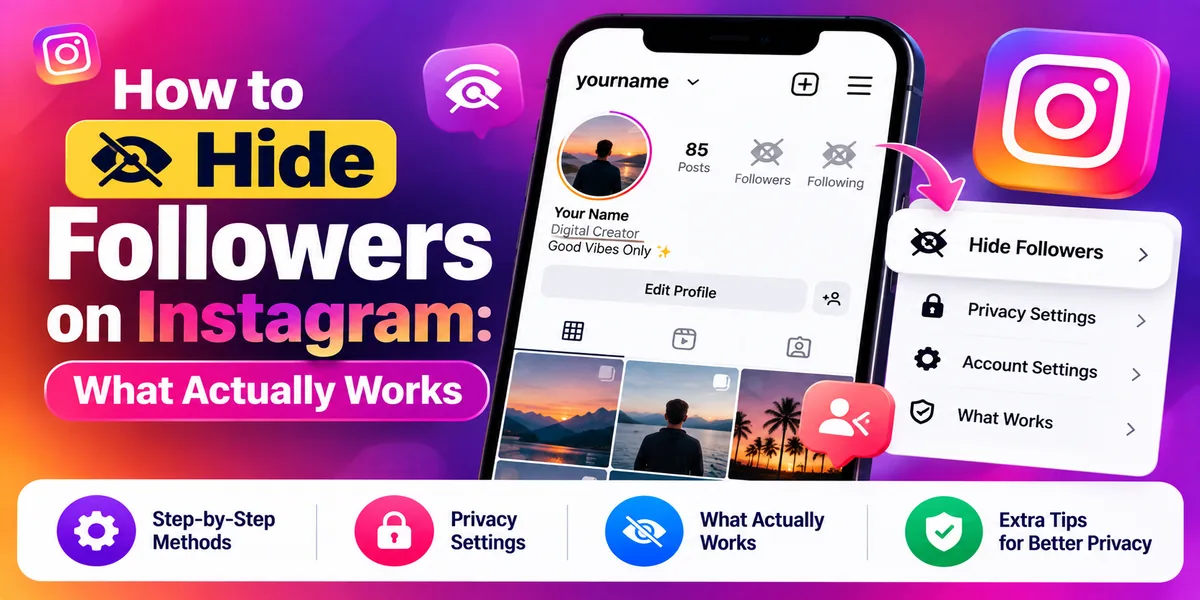
How to Hide Followers on Instagram: What Actually Works
There is no setting on Instagram that hides your follower list, and no setting at all that hides your follower count. Nothing in the app does either of those things directly. What you can do is limit who is able to view your lists by switching to a private account, and remove or block specific people you do not want on them.
That is the honest starting point, and it differs from what most pages on this subject imply. Below is what each available option actually achieves, including one detail about private accounts that almost every article gets wrong.
Follower list and follower count are two different things
These get conflated constantly, so it is worth separating them.
Your follower list — the names of the accounts following you, and the accounts you follow. Visibility depends on whether your account is private. There is no dedicated hide option.
Your follower count — the number on your profile. There is no way to hide this. It appears on every account type, in every region. Instagram publishes no setting for it, and any tool or article claiming otherwise is wrong.
What you can hide is like and share counts, which is an entirely different feature and the likely source of the confusion. More on that below.
The detail nobody mentions: going private does not hide everything
This is the most important thing on the page, and it contradicts a great deal of published advice.
Instagram’s own comparison of public and private accounts sets out what changes when you go private. Read it carefully and one row stands out: the public accounts you follow, and the public accounts that follow you, remain visible to anyone on Instagram and Threads — whether your account is private or not.
Going private restricts visibility of the private accounts in your lists to your followers. It does not draw a curtain across the whole list.
To be fair to Instagram, its own pages are not perfectly consistent here — a separate help article states that anyone wanting to see your posts, followers, or following list must send a follow request first. The detailed comparison table is the more specific of the two, and it is what we would rely on. The practical upshot: if you go private expecting nobody to see who follows you, you will be partly disappointed, and you should know that before it matters.
What actually works
1. Switch to a private account
The strongest single lever available. It does not hide your lists completely, but it is the only setting that meaningfully restricts them.
On mobile:
- Tap Profile (bottom right).
- Tap Menu (top right).
- Under Who can see your content, tap Account privacy.
- Tap the toggle next to Private account.
- Tap Switch to private to confirm.
On desktop: More (bottom left) → Settings → Account Privacy under Who can see your content → toggle Private account → Switch to private.
What you gain: only people you approve can follow you, your posts are limited to followers, and the private accounts in your lists become visible only to followers.
What stays visible regardless: your profile photo, name, username, and bio are visible to anyone on or off Instagram. And the public accounts in your lists, as covered above.
One thing to avoid: Instagram warns that switching frequently between public and private can trigger a temporary limit on your account, including on approving follow requests. Decide and settle.
2. Remove specific followers
If the problem is three particular people rather than the general public, this is more proportionate than going private.
- Tap Profile (bottom right).
- Tap Followers at the top.
- Tap X to the right of the person’s name, then tap Remove to confirm.
They are not notified. Instagram confirms this directly.
Worth flagging honestly: Instagram documents this feature in the context of private accounts — its article opens with “if your account is set to private.” Whether the same path works identically on a public account is not stated, so if you are public and the option behaves differently, that is why.
3. Block someone
Stronger than removing. A blocked account cannot find your profile, posts, or story.
From settings: Profile → Menu → under Who can see your content → Blocked → Add (top right) → search for the account → Block → confirm.
From their profile: open it → Options (top right) → Block → Block.
From a chat: Messages → the conversation → their name at the top → Options → Block.
Two current behaviors worth knowing. Blocking now also covers other existing accounts that person has and any new ones they create — though it does not apply to other accounts of theirs you already follow. And they are not notified.
4. Restrict someone — but know its limits
Restricting is often listed as a way to hide followers. It is not, and this is a common error.
What restricting actually does: they cannot see your online status or whether you have read their messages, their new comments on your posts are visible only to them until you approve, you stop receiving notifications from them, and your chat with them moves to Message Requests.
What it does not do: anything at all to your follower or following list.
From settings: Profile → Menu → under How others can interact with you → Restricted → Next → search → Restrict. From a comment: press and hold the comment → Restrict account.
5. Muting does nothing here
Muting changes what you see in your feed and stories. It has no effect on what anyone else can see about you. Several articles list it as a follower-hiding method; it is not one.
What each method actually hides
MethodHides follower list?Hides follower count?Removes them from your list?Notifies them?
Private accountPartly — private accounts onlyNoNoNoRemove followerNoNoYesNoBlockNoNoYesNoRestrictNoNoNoNoMuteNoNoNoNoHide like countsNo — different featureNoNoNo
If you have a Business or Creator account
Professional accounts cannot be set to private. Instagram states this plainly, and it applies to both Business and Creator accounts.
This is worth emphasizing because Instagram’s older help pages use the narrower phrasing “business profiles aren’t able to make their accounts private,” which has led a lot of published content to suggest Creator accounts can go private. They cannot. Instagram defines a professional account as either Business or Creator, and the restriction covers both.
If privacy matters more than professional features, you can switch back to a personal account first:
On mobile: Profile → Menu (then Settings if needed) → Account type and tools → Account type → Switch account type → Switch to personal account → Switch to personal.
On desktop: More → Settings → Business tools and controls or Creator tools and controls → Switch to personal account → Switch back.
The cost: you lose access to Meta Business Suite and Meta Ads Manager. Also note that when you go public again, all pending follow requests are automatically accepted.
Related privacy settings worth knowing
Hide like and share counts. The feature people confuse with hiding followers. Profile → Menu → under What you see → Like and share counts → toggle Hide like & share counts. To hide the count on one post before publishing, tap More options and toggle Hide like counts on this post. On an existing post: Options → Hide like count to others.
Hide your story from specific people. Profile → Menu → under Who can see your content → Story, live and location → Hide your story and live videos from specific people → select → Done. Instagram is clear this does not stop them seeing your profile and posts.
Close Friends. Share a story with a chosen list: Create → Story → capture → tap Close Friends. Two things to know: people on the list can see they are on it, and nobody can request to be added. Viewers see a Close Friends label and a green ring.
Limit interactions. Profile → Menu → How others can interact with you → Limit interactions. You choose what gets limited, who it applies to — everyone except close friends, recent followers, or accounts that do not follow you — and for how long, up to four weeks and extendable. It limits comments and new messages, not follower lists.
Stop appearing as a suggested account. In settings, toggle off Show account suggestions on profiles. Note the trade-off: you also stop seeing suggestions on other people’s profiles.
Apps claiming to hide your follower list are a scam
No app can hide your follower list. There is no Instagram setting for it and no interface any third party could use to do it, so nothing built outside Instagram can deliver it.
Anything advertising this capability is either doing nothing, or harvesting your login. Handing your Instagram credentials to a third-party app is the fastest route to losing the account outright. If you see a service promising it, that promise alone tells you what the service is.
Frequently asked questions
Can you hide your followers on Instagram? Not directly. There is no setting that hides your follower list, and none that hides your follower count. Switching to a private account is the only meaningful restriction available, and even that leaves the public accounts in your lists visible.
Why can people still see my followers when I’m private? Because private accounts do not hide everything. Per Instagram’s own comparison of account types, the public accounts you follow and the public accounts following you stay visible to anyone on Instagram and Threads. Only the private accounts in your lists are restricted to your followers.
Can I hide my follower count on Instagram? No. There is no setting for it on any account type. You may be thinking of hiding like and share counts, which is a separate feature and does exist.
Can you hide who you follow on Instagram? The same limits apply as for followers. Going private restricts the private accounts in your following list to your followers; public accounts you follow stay visible.
Does removing a follower notify them? No. Instagram confirms that removed followers are not notified. They may notice later if they look for your posts and find they can no longer see them.
Can business accounts hide followers? No — and they cannot even go private, which is the usual workaround. This applies to Creator accounts too, despite widespread claims otherwise. Switch back to a personal account first if privacy matters more than professional tools.
Does restricting someone hide my followers from them? No. Restricting affects comments, messages, online status, and read receipts. It has no effect on follower or following lists.
Are there apps that hide your Instagram followers? No. No app can do this, because no setting or interface exists to make it possible. Apps advertising it are at best useless and at worst credential theft.
Will switching to private hurt my reach? Yes, significantly. Private accounts do not appear in Explore or hashtag results, and non-followers cannot see or share your posts. It is a genuine trade-off between privacy and reach, not a free win.
Get a free marketing audit
See exactly where your SEO, ads and website are leaving money on the table.